Wednesday, April 22, 2015

Lightroom 6 --What's New?

Lightroom 6 is now available via a Cloud Subscription or as a Stand alone “forever” purchase.

LR6 banner

Adobe Product Manager,  Tom Hogarty details the changes in Lightroom 6 in a blog post at photoshop.com. http://blogs.adobe.com/photoshopdotcom/2015/04/the-cc-photography-plan-keeps-getting_better.html  This post includes video highlights of the new abilities in Lightroom. 

For a more detailed list of Lightroom 6 features, The blog post at Lightroom Queen, by Victoria Bampton,  http://www.lightroomqueen.com/whats-new-lightroom-cc-6-0/ lists them all…

Note: The features in Lightroom 5 have NOT been changed, and as a result Everything you have learned about Lightroom 5 is available in Lightroom 6. Victoria Bampton has a free Adobe Photoshop Lightroom 5 – Quick Start Guide, a 76 page PDF eBook that is available here… http://www.lightroomqueen.com/free-ebook/lr5/

Craft&Vision at http://craftandvision.com/products/lightroom-6-up-to-speed?mc_cid=f0e9a9f79d&mc_eid=87d61c6f70 has an e-book  “Lightroom 6 Up to Speed Everything You Need to Know About the Adobe Lightroom 6 Upgrade by  Piet Van den Eynde
It’s $6.00 Canadian ($4.74 US)  until March 29… 

By the way Lightroom 6 now takes advantage of your computer’s graphics card, and yes, it is much faster…

Enjoy!!! I am.


Tuesday, February 10, 2015

Finding Duplicates in Lightroom


Using Lightroom's Search Filters

Use the Library Filter for just Date, and turn off all the others (set to None)

Lightroom will display the photos sequentially, using the Camera's EXIF Data for "Time Captured" by Month, day, year and hours, minutes and seconds. Any photos with the same Capture time will be displayed side by side...

It would look like this in Lightroom's Library Module...

Lib-Filter

Things to watch for are photos shot with a hi-speed "burst" shooting Mode where 3 or more photos are less than seconds apart. It would be best if you stacked photos shot in a rapid sequence, or bracket first.

You can also try a search by Filename, and use as a filter Contains = "copy", or "1" or "2" ... sometimes when files are duplicated one of those extensions are added to the filename...

FileName

Plug-ins

Before you use or try any of these plug-ins, make sure your catalogue is up to date, optimized and backed up...

Teekesselchen

A FREE fast duplicate finder plug-in for Adobe Lightroom using EXIF meta-data.

http://www.bungenstock.de/teekesselchen/

I was really impressed with how fast this plug-in worked and how it is implemented. The online documentation is excellent.

LR Duplicate Finder

A "commercial" plug-in by Jim Keier (England) Cost is £8.50 (currently about $13.50 in US Dollars

You can watch a video and purchase it on this page http://www.lightroom-plugins.com/DupesIndex.php

Laura Shoe, a Lightroom Guru also has a video with some useful insights, you can watch it right here!

Stand Alone Programs for Mac and PC

Mac
My favorite Mac duplicate finder Photo app is called PhotoSweeper

There is a Lite version http://overmacs.com/photosweeperlite.html $2.99<br >

and a "Full" Version. http://overmacs.com/photosweeperlite.html<br > $9.99<br >

The PhotoSweepers work on iPhoto, Aperture and Lightroom Libraries. At the above websites you can even download a trial version.

PC

Awesome Duplicate Photo Finder

A free Tool for finding and remove duplicate photos on your PC. http://www.duplicate-finder.com/photo.html


Thursday, January 29, 2015

Lightroom - Class Review #2


Lightroom - Class Review #2

1. Importing and exporting catalogues.

You can find details here on this blog at  http://psforphotos.blogspot.com/2014/05/importing-and-merging-catalogues-in.html

2. Control + J (PC) and Command + J (Mac)

The Library View Options, Grid View This panel lets you customize the metadata information displayed on the Library Thumbnails.

The Loupe View panel lets you customize metadata in the Library's Loupe view or on the Develop Modules display... Press the "I" (eye key) to cycle through the data being displayed. The image farther down the page is displaying Loupe View metadata.

3. The Develop Module.

For a synopsis of what each panel does in Lightroom check out the following web page. http://uofgts.com/Lightroom/input.html Click the Tab: Develop --Global Adjustments

You'll find keyboard shortcuts, and a brief description of what each panel does and links to the pages below and more...

This is a case study of the enhancing steps I took in Lightroom for the image "Rocky Creek."

The Histogram: http://uofgts.com/Lightroom/DevelopModule/index.html

Photo Analyses: http://uofgts.com/Lightroom/DevelopModule/part2.html

White Balance http://uofgts.com/Lightroom/DevelopModule/part3.html

Basic Panel http://uofgts.com/Lightroom/DevelopModule/part4.html

and the

Tone Curves http://uofgts.com/Lightroom/DevelopModule/tonecurves.html

By the way, as you work on an image, you can compare the image you are working on to the way the image originally looked by pressing the backslash key "\" (It's under the Delete key Mac, Backspace Key (PC)) Before and After
Under the Develop Module window in the Tool Bar (T Key) is a comparison tool that lets you see Before, and After images.

If you have any questions, send me an e-mail or bring them to class.

4. Making a "Watched Folder"

A "Watched Folder" is a handy method for quickly importing files into Lightroom and have presets, keywords and settings applied to the images!

You can find instructions at the following web page "Click the Import Tab" http://uofgts.com/Lightroom/input.html

Next Class... Bring some of your images, we'll work on them in class.


Friday, January 16, 2015

Lightroom --Week 1 Review


Lightroom -- Week 1 Review

Welcome to Clark Colleges Lightroom Class

If you do not have Adobe's Lightroom installed (or you own a purchased version) you can take advantage of Adobe's Creative Cloud Photography deal.

There are no previous product ownership requirements. You get Lightroom & Photoshop with additional free supplements. For example you can now edit your Lightroom photographs on an iPad or Android Tablet using a free app.
https://creative.adobe.com/plans/photography

If you are still not certain that you want to commit to Lightroom & Photoshop, at the above web page link, at the bottom of the page, you may download a 30 day trial version of Lightroom and Photoshop.

Also note, that if you wish, you can purchase the software at full price and use it "forever."


Links to subjects covered in class

The Class Lightroom Primer website portal page is located at http://uofgts.com/Lightroom/

In class we discussed "Calibrating you Monitor" At the least, you need to set the contrast and brightness of your monitor.

Details on how to do monitor calibration, can be found at this link http://uofgts.com/PS-P2Site/Calibration.html

Please read and watch the videos found on the "Things to do First" Tab http://uofgts.com/Lightroom/index.html

On that page is a link on how to set up your IPTC Metadata http://uofgts.com/Lightroom/metadata.html and how to apply the data to existing files in your Library/Catalogue

We went through the steps To Import Your Photographs into Lightroom using the "Import" module

I have just updated information in the "Import..." tab on the Input Module page of the website (makes much more sense now... ) http://uofgts.com/Lightroom/input.html

Reminder

This Monday there is no class as it is Martin Luther King day, January 19. As a result the next class will not be until the following Monday on January 26. See You Then... If you have any questions, send an e-mail.

I'll send YOU another e-mail next week with a reminder of what you should bring to class... and maybe more "news." I'll also tell you what will be covered in the next class.


Tuesday, October 21, 2014

Importing iPhoto and Aperture photographs into Lightroom.

Way back when, Lightroom 3 used to be able to directly import photos from Apple’s iPhoto and Aperture’s convoluted storage method. Apple changed the structure apparently after I abandoned iPhoto (version 5 or 6/), and it suddenly became much more difficult to import photos into Lightroom.  On top of that this spring when Apple announced it was no longer going to support it’s Pro Application, Aperture there was some Panic from Aperture users about what to do.

Adobe to the Rescue. 

Adobe has released a plug-in for Lightroom that will allow you to Import BOTH Aperture and iPhoto Photographs directly into Lightroom!

The caveat is, not everything will import, but most important of all, You will gain control of YOUR images trapped in Aperture or iPhoto!

Here are the details, directly from Adobe’s Lightroom Blog

Aperture import plugin now available (It also works with iPhoto!)

Wednesday, September 17, 2014

Celebrating the Autumnal Equinox

Celebrating The Autumnal Equinox By Garry T. Stasiuk
An Equinox occurs when the Sun is directly over Earth’s Equator. Even though an equinox occurs at Precise Moment in Time — 2:29 AM Universal Time on September 23, of this year. The time that event occurs around the world varies, depending upon what time zone you located in on the Earth!
For the west coast of North America, the time of the Autumnal equinox is September 22, 7:29 PM PDT.
If you live in Edmonton, Calgary or Denver the time will be September 22, 8:29 PM MDT
Chicago is in the Central Time zone so the time the equinox happens will be September 22, 9:29 PM CDT, For New York it’s September 22, 10:29 PM EDT
For other locations around the world the time is:
For London, September 23, 03:29 AM BST -British Summer Time
For Dubai, September 23, 06:29 AM
For Tokyo, September 23, 11:29 AM
For Melbourne, Australia Tuesday, September 23 at 12:29 PM —which is actually the First Day of Spring in the southern hemisphere.
Take A GeoChron Selfie
So, what can we do to celebrate the Autumnal Equinox? Take a selfie with your GeoChron in the background at the moment of equinox! And, send it to us via Facebook! Post the picture here,
https://www.facebook.com/GeochronUSA

If you need to look up the time of the equinox for your city, the “Time and Date” Website, has a handy chart
 http://www.timeanddate.com/worldclock/fixedtime.html?iso=20140923T0229&msg=Sep- tember%20Equinox%202014

A Sunset or Sunrise Photograph (selfie)!
Image1 15If you really want to celebrate the Equinox you can also take a photo (or a selfie) of a sunset on the 22nd or a sunrise on the 23rd. On those days the sun will rise directly out of the east and set directly in the west! Because the sun is at or near the Celestial Equator, the Earth’s Equator drawn in the sky... The sun will be really close the the East and West cardinal points for 3 or 4 days. So, if the weather isn’t coop- erating you have a three or four day window to take the photograph. This is a way for you to fix in your mind, the direction of East and West for your location. We’d love to see those pictures too!


Places to Visit for the ultimate Sunrise selfie!

Other Solar Observatories around the world include, The Pyramids in Egypt, Teotihuacan in Mexico... the list is quite impressive. You can learn
more at this NASA websiteThe day of the Equinoxes was so important to our all ancient cultures, they builtsolar observatories to mark the date when the sun rose directly out of the east. The most famous monument is Stonehenge in England. In North America there are Medicine Wheels at Big Horn Mountain, Wyoming, Cahokia in Clair County, Illinois, and the Moose Mountain Medicine Wheel in Saskatchewan, Canada.
http://sunearthday.nasa.gov/ 2005/locations/gaocheng.htm

Post your photos at GeoChron’s Facebook Page https://www.facebook.com/GeochronUSA

Other Celebrations?
Eat moon cakes. The Chinese celebrate the autumn harvest and one of the popular “Foods” is the Moon cake, usually filled with fruit, duck eggs, Lotus and sesame seeds. !
If you live in Japan, The day of the Autumnal Equinox is a holiday to celebrate their ancestors having reached the other shore, nirvana. The celebration is called Higan or Higan-e, and is part of the Buddhist tradition is to visit, clean and decorate your ancestors grave site.
The Autumnal Equinox In Mythology

Image1 17In 2014, behind the Sun, with the aid of a Planetarium Program (Starry Night Pro), we can see that the Sun and the Celestial Equator is located between the constellations of Leo and Aquarius. No where near the Milky Way.
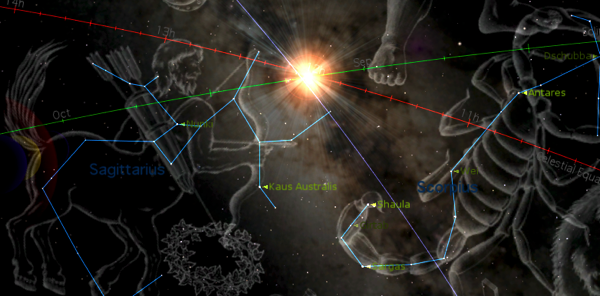


If we go far enough back in time, to around 4400 BC, (image below created by Starry Night Pro V 6), we see the Sun, the Celestial Equator (Earth) and the Milky Way aligned at an Autumnal Equinox. Many cultures including the Greeks, the Polynesian, the Sumo of Nicaragua and Honduras, the Pawnee and Cherokee, and yes the Egyptians and the Mayan all spoke of a time when our ancestors souls could cross 

Image2 19
from the mythical Earth into Heaven, the Milky Way. Perhaps this alignment was the first celebrated Autumnal Equinox so long ago! 

Monday, June 9, 2014

It's Your Turn

The Oil Trains

This is my rendition of the “Oil Train” 

The Challenge: Use Lightroom to “Develop” your version of the image.

\NewImage

You can download the image by clicking or right clicking and save as… Oil Train

The Link is a 36 megapixel NEF File.  Have Fun!